NeoMutt is fast, lightweight, and honestly one of the best ways to manage email from the terminal.
But if you’re new to it, the setup can feel confusing. That’s because NeoMutt doesn’t try to do everything by itself—it’s designed to work alongside other tools.
That’s what people mean when they talk about neomutt integration with outside tools.
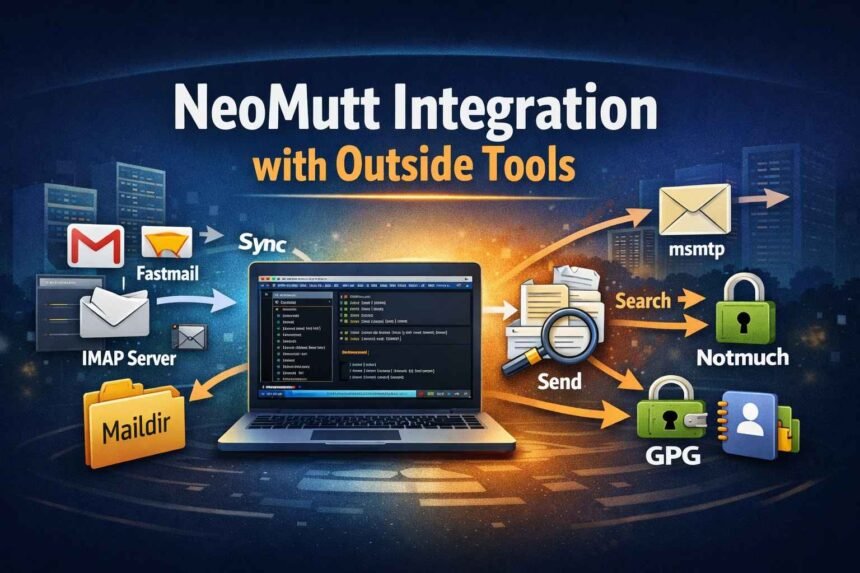
In a typical setup, NeoMutt handles reading and writing email. Then you connect it to a few small programs that take care of the rest—syncing mail from IMAP, sending mail through SMTP, and adding faster search.
The classic starter setup looks like this:
NeoMutt + mbsync (isync) + msmtp
That combination gives you a solid, working base. It’s exactly what people are looking for when they search for how to integrate neomutt with mbsync and msmtp.
The goal of this guide is simple: help you turn NeoMutt from a bare terminal app into a complete email system without breaking your mail, losing messages, or getting stuck in configuration chaos.
What Integration With Outside Tools Means in NeoMutt
When people talk about NeoMutt integration, they’re really talking about one idea:
NeoMutt doesn’t try to do everything.
It reads and displays mail beautifully. But it relies on other programs to handle syncing from Gmail, sending via SMTP, fast indexing, or encryption with GPG.
That’s what “integration” means here. You connect NeoMutt to focused tools, and together they behave like a full-featured email client.
For example, NeoMutt usually doesn’t fetch mail directly from Gmail. You use mbsync (isync) or OfflineIMAP to download IMAP mail into a local Maildir folder. NeoMutt reads from that folder.
Sending works the same way. NeoMutt writes the message. msmtp sends it.
The key mindset shift:
NeoMutt isn’t missing features. It’s intentionally modular.
Once that clicks, the setup feels logical instead of frustrating.
What NeoMutt Handles vs What External Tools Handle
NeoMutt is your interface. It:
- Shows folders
- Displays messages
- Composes and replies
- Handles attachments
- Applies tags and macros
But it does not:
- Sync IMAP mail
- Send SMTP mail
- Handle OAuth2
- Index large mailboxes
- Manage contacts
- Encrypt/decrypt with GPG
That’s why people look for a complete neomutt email workflow setup — NeoMutt is one piece of the system.
A typical beginner workflow:
- mbsync downloads mail
- NeoMutt reads and manages it
- msmtp sends outgoing mail
Once that works, NeoMutt feels complete.
Recommended Beginner Tool Stack
Start simple.
You only need three things:
- NeoMutt
- mbsync (or OfflineIMAP)
- msmtp
That’s it.
After that works reliably, then consider:
- Notmuch (search)
- GPG (encryption)
- abook or khard (contacts)
If you’re exploring broader terminal-based tools, you might also find our guide on Tech Trends SeveredBytes helpful for understanding modern developer workflows.
Common Beginner Mistake
Trying to set up syncing, SMTP, GPG, Notmuch, contacts, and OAuth2 all at once. This basic stack forms the foundation of proper NeoMutt integration with outside tools for most users.
When something fails, you won’t know which layer broke.
Instead:
- Get syncing working.
- Get sending working.
- Then add search.
- Then encryption.
- Then contacts.
Layer by layer.
How Mail Syncing Works (IMAP → Maildir)
Your email lives on an IMAP server.
A tool like mbsync connects to that server and copies mail into a local Maildir folder.
NeoMutt reads that local copy.
That’s it.
Maildir simply stores each email as its own file. Because everything is local, NeoMutt is fast—even offline.
Experience-Based Advice
Before you change any sync settings, make a backup of your Maildir folder.
It takes seconds and can save hours of panic.
Integrating NeoMutt With mbsync
mbsync connects to IMAP and writes mail into something like:
~/Mail/
NeoMutt points to the same directory.
If you run:
mbsync -a
and your Maildir fills with real mail, syncing works.
Common Mistakes
- Syncing the same account with two different tools
- Pointing NeoMutt to the wrong Maildir path
- Syncing every Gmail label on day one
Start with just Inbox.
Integrating NeoMutt With OfflineIMAP
OfflineIMAP does the same job as mbsync: sync IMAP to Maildir.
It’s older and very customizable.
If NeoMutt opens empty folders, check:
- Is OfflineIMAP writing to the folder NeoMutt expects?
- Did authentication fail?
Most “NeoMutt problems” are actually sync tool problems.
Integrating NeoMutt With msmtp
NeoMutt writes the message.
msmtp sends it.
That’s the entire relationship.
If sending fails, check:
- SMTP server name
- Port
- TLS settings
- Authentication
Practical Test
Send a message to yourself.
If it arrives, SMTP works.
If not, fix msmtp before touching NeoMutt.
Gmail: OAuth2 vs App Password
Gmail blocks basic password login.
You have two options:
App Password (Easier)
Generate one in your Google account.
Use it in:
- mbsync (IMAP)
- msmtp (SMTP)
This is usually the simplest way to get a neomutt gmail setup working.
OAuth2 (More Secure, More Complex)
Requires:
- Google Cloud app
- Client credentials
- Token management
If you’re new, use App Password first.
Switch later if you want.
Common Gmail Mistake
Editing NeoMutt config when the real issue is Google authentication.
Separate:
- IMAP login
- SMTP login
- NeoMutt config
Integrating NeoMutt With Notmuch
Notmuch builds a search index for your Maildir.
Without it, large mailbox searches can feel slow.
With it, searching feels instant.
But only add Notmuch after syncing is stable.
If Maildir isn’t reliable, search won’t be either.
Integrating NeoMutt With GPG
NeoMutt uses GPG for:
- Signing mail
- Encrypting mail
- Decrypting received messages
Experience Tip
Make sure GPG works in your terminal first:
- Generate a key
- Encrypt a test file
- Decrypt it
If that works, NeoMutt integration is straightforward.
Common Integration Problems
Duplicate Mail
Usually caused by:
- Two sync tools
- Wrong Maildir path
- Aggressive two-way sync
Fix by:
- Stopping sync
- Backing up Maildir
- Verifying one tool per mailbox
Disappearing Mail
Usually caused by deletion rules.
Start with conservative settings.
Never enable aggressive delete mirroring until confident.
Authentication Errors
Very common with Gmail.
Troubleshoot IMAP and SMTP separately.
Do not edit everything at once.
Experience-Based Advice
After helping many people set this up, here’s what consistently works:
- Keep configs minimal.
- Comment your config files.
- Change one thing at a time.
- Back up before major changes.
- Don’t chase “perfect” on day one.
NeoMutt rewards patience.
Quick Setup Checklist
Before calling your setup “done,” confirm:
- Mail sync runs without errors
- Maildir contains real messages
- NeoMutt reads those messages
- You can send a test email
- Sent mail appears correctly
- Config files are backed up
If all six are true, your base setup is solid.
mbsync vs OfflineIMAP: Which Should You Choose?
If you’re unsure whether to use mbsync or OfflineIMAP, here’s a simple guideline. mbsync is generally faster and actively maintained, making it a strong default choice for beginners. OfflineIMAP offers more customization but may require more configuration effort. For most new NeoMutt users, mbsync is the safer starting point.
Frequently Asked Questions
- Can NeoMutt work without mbsync or OfflineIMAP?
Yes, but it’s not common. Most setups rely on a sync tool to download mail locally.
- Is mbsync better than OfflineIMAP?
mbsync is generally faster and more actively maintained. Both work. Pick one, not both.
- Do I need Notmuch?
No. NeoMutt works without it. Add it if your mailbox is large or search feels slow.
- Is OAuth2 required for Gmail?
No. An App Password is often simpler and works fine for most users.
- Can I lose mail while setting this up?
Only if deletion rules are misconfigured. Always back up Maildir before major changes.
Conclusion
At this point, you should understand what neomutt integration with outside tools really means. NeoMutt integration with outside tools works best when each layer is configured separately and tested step by step.
NeoMutt is your interface.
Other tools handle syncing, sending, search, and security.
Keep it simple:
- Sync first.
- Send second.
- Upgrade later.
Back up your Maildir and config files once things work.
If you’ve been trying to build a complete neomutt email workflow setup, you’re on the right path. Add features slowly. Test everything. Keep layers separate.
That’s how you end up with a setup that stays stable instead of breaking every week.